Version 1.5 · on the Mac App Store
Snap it. Mark it up. Move on.
A fast, discreet screenshot utility for macOS. Press a key, drag a box, draw on it right where you are — then copy. And now it reads, too: copy text from anything on screen, or translate it on the spot, entirely on your Mac. Nothing is collected and nothing is sent.
$6.99 · one-time
No subscription, no account
- No account
- No cloud
- No ads
- No tracking
Requires a Mac with Apple silicon running macOS 15 or later.
English · Français · Deutsch · Italiano · Español (MX) · Português (BR) · Polski · 日本語 · Eesti · Türkçe · Ελληνικά
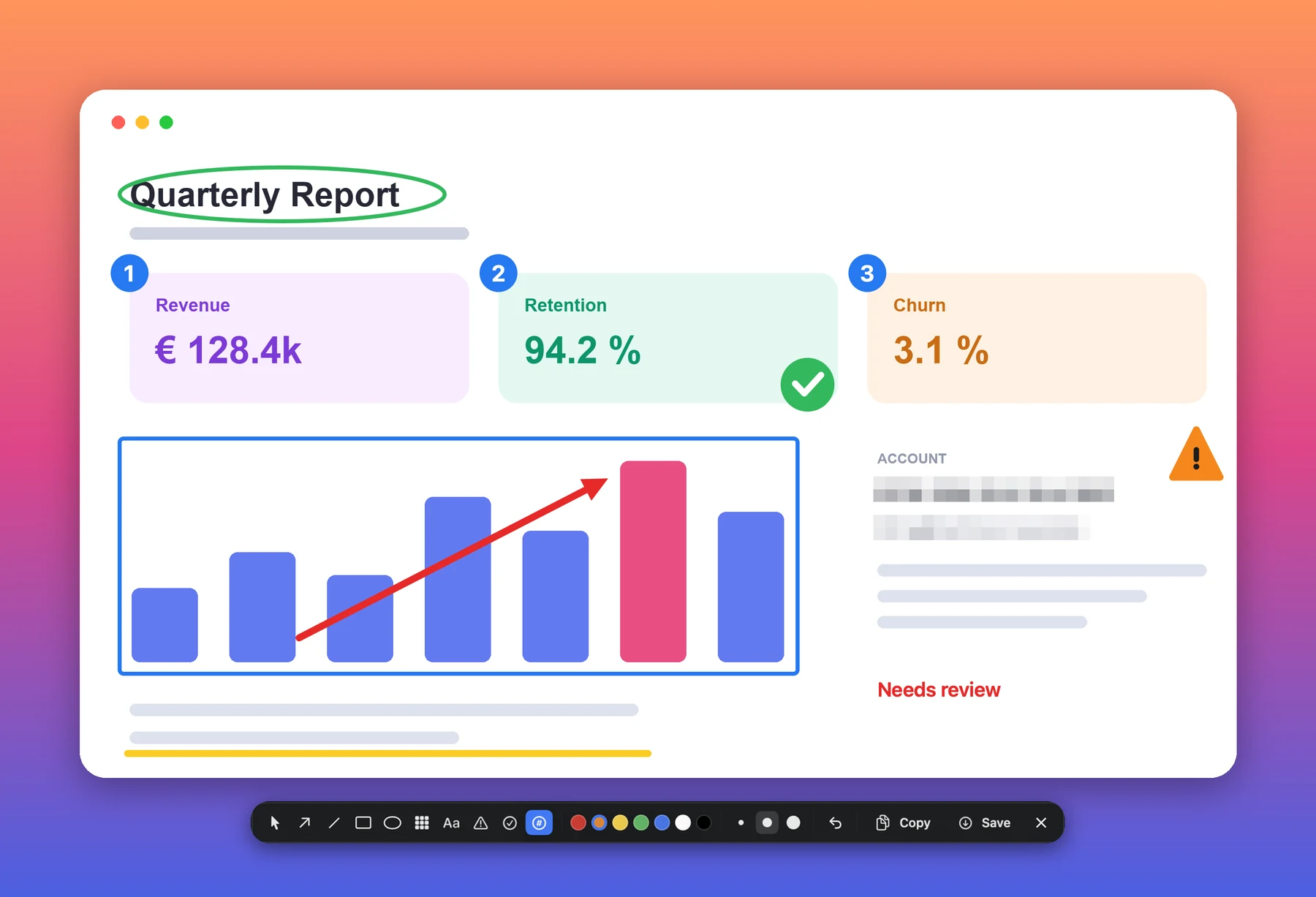
A real capture. The selection, the toolbar and every mark are Kesit at work.
Privacy
There is no server.
That is the whole of it.
Most screenshot tools want an account. Then a sync folder, then a share link, a dashboard, a plan. Every one of those is a copy of your screen sitting on somebody else’s computer.
Kesit has none of them. No account system. No cloud storage. No share links. No analytics SDK, no crash reporter, no advertising identifier. Your screenshots go to your clipboard and to the folder you chose, and nowhere else.
- No account
- No cloud
- No ads
- No tracking
You do not have to take our word for any of that.
Kesit runs in Apple’s App Sandbox and ships without the network entitlement. macOS will not let a sandboxed app open a connection it never asked for — so this is not a promise we are making, it is a permission we declined to request. Check it on your own Mac:
codesign -d --entitlements - /Applications/Kesit.app
You will see the sandbox, and permission to write to the folder you picked. You
will not see
com.apple.security.network.client, because it is not there. An app without it cannot reach the network at all,
whatever its developer says.
A breach needs data. A subject access request needs a record. Kesit has neither, because it never collected them in the first place.
Read the full privacy policy →Six things, done properly.
Kesit does not try to be a design tool. It takes the shot, lets you mark it up where you drew it, reads what cannot be copied — and gets out of the way.
Capture
The whole screen, a region you drag out and adjust, or a single window picked by pointing at it. The selection stays live — move it, resize it, nudge it a pixel at a time with the arrow keys — until it frames exactly what you meant.
Annotate in place
Arrows, lines, rectangles, ellipses, text and a highlighter that keeps the words underneath sharp, plus ten stamps — thumbs up and down, ticks, crosses, warnings — and numbered badges that count up as you place them, so a sequence of steps labels itself. No second window, no editor to open.
Copy text from anything
Some words cannot be selected: a photograph, a scanned document, an error dialog, a frame of a paused video. Select the area and Copy Text reads them off the pixels and puts them on the clipboard, ready to paste — on your Mac, by macOS’s own text engine.
Translate what you see
Select an area, press Translate, and a small panel says it in your language — no screenshot taken, nothing kept. Translation runs on your Mac with Apple’s frameworks; macOS may ask once to download a language, and after that it works offline.
Cover what should not travel
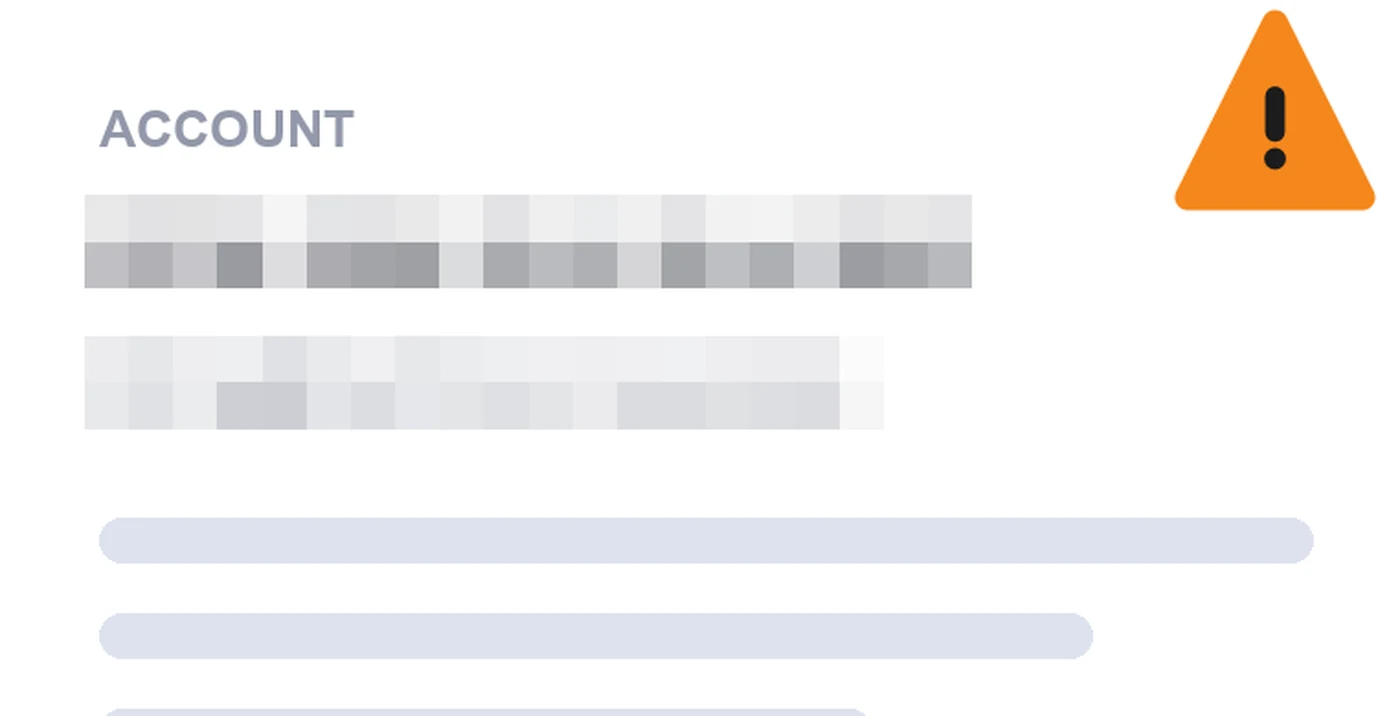
Drag a box over an address or a licence key and Pixelate replaces it with coarse blocks before the shot leaves your Mac. The blocks are deliberately large, because fine pixelation can be read back and a blur removes nothing at all.
Sized for documents
A Retina screenshot is four times the pixels of a standard one, and a document full of them gets heavy fast. Kesit captures at standard size by default and keeps full resolution one click away.
Redaction
Coarse blocks, on purpose.
Pixelate replaces an area with blocks of its own averaged colour, sized so a glyph spans less than one block and is destroyed rather than softened. A blur would spread the information out without removing it, and published work recovers text from both blurred and lightly pixelated images.
Be clear about what that buys you. It makes something unreadable, not unrecoverable. Kesit is a screenshot utility, not a security product, and it will not pretend otherwise. If a detail must never be recovered by anyone, the safe course is to frame the shot so the detail is not in it.
Copy Text and Translate
The screen is full of words you cannot select.
A scanned PDF. A photograph of a form. An error dialog. A menu in a video paused at the right frame. The words are right there — and the clipboard cannot touch them. Select the area instead: Copy Text puts the words on your clipboard, and Translate shows them in your language, in a small panel, with the original one click away.
Both run entirely on your Mac, on the text recognition and translation built into macOS. Nothing is sent anywhere — Kesit still has no network entitlement, so it could not send anything if it tried. The first use of a new language may prompt macOS to download it once; the download is macOS’s own, and after it, translation works offline. The languages on offer are Apple’s — Greek and Estonian are not yet among them, even though Kesit itself speaks both.
It lives in the menu bar.
No dock icon and no windows — just an icon in the menu bar and three global shortcuts. All three can be changed in Settings. macOS keeps ⌘⇧3 to ⌘⇧6 for its own screenshots, which is why the series skips. Inside a selection, ⌘E copies the text and ⌘T translates it.
New in 1.5
Eleven languages, all the way through.
German, Italian, Polish and Japanese join the seven Kesit already spoke. Not a translated menu bar over an English app — every alert, every tool name, every permission message.
Switchable from Settings, without touching your system language.
Take the shot.
One-time purchase. No subscription, no account, no server.
Requires a Mac with Apple silicon running macOS 15 or later.